Attendance Options
If you're getting started with Church Windows or revamping your attendance taking procedures, you'll want to review relevant settings for accurate, intuitive tracking. Some settings relevant to Enter Attendance include:
-
Tracking Communion and Excused Absences
-
Attendance field labels
-
Attendee sorting

Access Attendance Options
To access from the Attendance Entry, go to Attendance > Attendance Entry > Options


Tracking
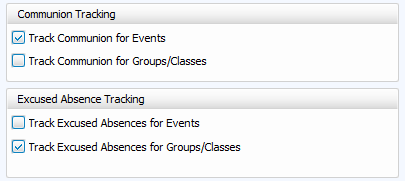
Choose the information you'd like to track with each event or meeting. Communion Tracking is an available default, but as Communion is something that can be relabeled, you can use this default for something else by renaming that field. Choose to track for Events and whether to track for Groups and Classes.
You can also choose to have an entry place for whether or not Events or Groups and Classes track excused absences.
These check boxes are also accessible from Special Functions > Settings > Attendance Options.
Relabel Fields
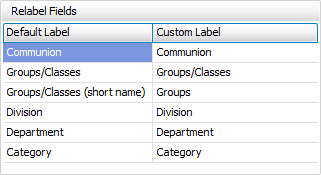
Attendance has specific labels that can be changed in Attendance Options. These fields are tied to those in the Relabel Fields tab found in Special Functions > Settings > Relabel Fields.
Sort
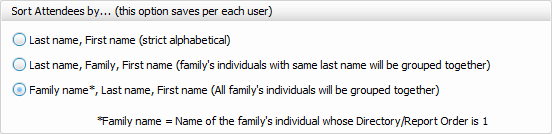
This is a user specific setting. Decide whether you'd like potential attendees to be sorted by their own last name, family name (primary's last name) then last name, or by family.
Reset
The list of attendees in the Attendance Entry screen can be adjusted to sort your preference. Drag columns above the heading bar to group and sort by the that setting. Adjust column widths by hovering over dividing columnar lines and then click and drag to desired dimensions.
Opt to include the address column with this check box in options  .
.
To reset the attendee grid to its original default state, click  .
.